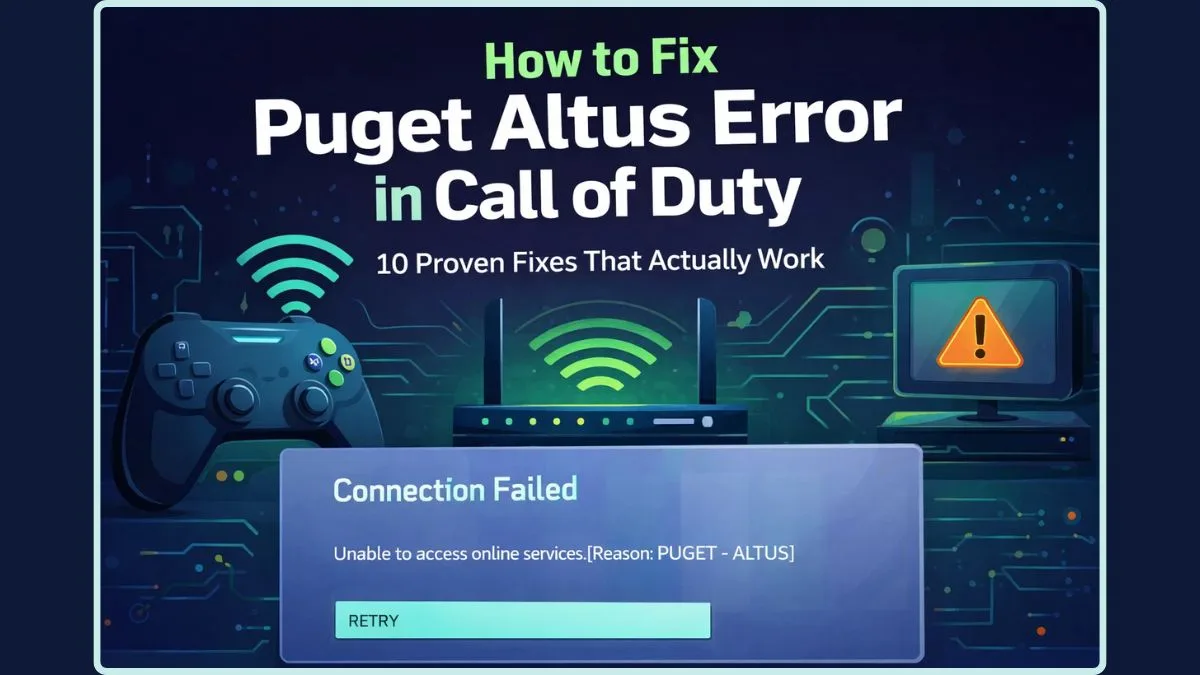
Puget Altus Connection Failed: Decoding a Common CoD Error and Unlocking Proven Fixes
Encountering a "Connection Failed" message when you're geared up for some intense Call of Duty action can be incredibly frustrating. Among the myriad of error codes that plague online gaming, the
Puget Altus Error stands out as a particularly common culprit, leaving players of Modern Warfare 2, Modern Warfare 3 (including its Beta), and Warzone 2 unable to access online services. If you've been met with the disheartening prompt "Connection Failed: Unable to access online services [Reason: PUGET-ALTUS]", rest assured, you're not alone. This guide delves into what causes the Puget Altus Error and, more importantly, provides a comprehensive list of proven fixes to get you back into the fight.
What Exactly is the Puget Altus Error in Call of Duty?
The Puget Altus Error is essentially a communication breakdown between your game client and Call of Duty's online servers. It signifies that your system is failing to establish or maintain a stable connection to Activision's online infrastructure, preventing you from accessing multiplayer, Warzone lobbies, or any online features. This error isn't exclusive to a single Call of Duty title; it has been reported across various iterations, from the MW3 Beta to the long-launched MW2, indicating a broader underlying issue that can manifest under different circumstances.
While the specific "PUGET-ALTUS" identifier points to a particular server-side or network-related issue that Activision's systems recognize, for players, it boils down to one thing: you can't play online. The good news is that understanding this error’s nature helps in systematically troubleshooting it. Often, this error stems from external factors like server outages or minor network glitches rather than a fundamental problem with your game installation or hardware. However, ruling out client-side issues is crucial for a swift resolution.
Initial Checks: Is the Problem On Your End or Theirs?
Before diving into complex troubleshooting steps, it's vital to determine if the
Puget Altus Error is due to a widespread outage or a localized issue with your setup. This diagnostic approach can save you significant time and effort.
Verify Call of Duty Server Status
The very first thing any player should do when faced with a "Connection Failed" message, especially one like the Puget Altus Error, is to check the official server status. Activision and PlayStation Network (PSN), Xbox Live, or Battle.net servers periodically experience issues, maintenance, or unexpected outages. For instance, past incidents, such as the widespread PSN server problems on October 11th, which affected MW3 Beta, Warzone 2, and MW2 players simultaneously, clearly demonstrated that the problem wasn't on the players' end.
*
Official Sources: Always refer to the official Call of Duty Service Status page or Activision Support's social media channels (like Twitter/X). These are the most reliable places for real-time updates on server health.
*
Platform Status Pages: If you're on console, check the status of your platform's online services (e.g., PlayStation Network Status, Xbox Live Status). Sometimes, platform-wide issues can impact game connectivity.
*
Community Forums: Websites like Reddit or dedicated Call of Duty forums are excellent for gauging if other players are experiencing the same issue. A quick search can confirm if the Puget Altus Error is affecting a broad community or just you.
If servers are indeed down or experiencing issues, no amount of troubleshooting on your end will resolve the Puget Altus Error. In such cases, patience is your best course of action. Keep an eye on the official channels for updates. For more detailed insights into specific occurrences of this error, you might find these articles helpful:
MW3 Beta Puget Altus Error: Unable to Access Online Services? and
Fix Puget Altus Error: Call of Duty MW3 & MW2 Connection Failed.
Check Your Internet Connection
Assuming the servers are green, the next logical step is to verify your own internet connection. While the Puget Altus Error often points to something specific, general connectivity problems can sometimes trigger it.
*
Test Other Devices: Can other devices in your home access the internet and online services without issue? This helps rule out a broader ISP problem.
*
Router Placement: Ensure your router is in an optimal location, free from obstructions, to provide a strong Wi-Fi signal if you're playing wirelessly.
*
Run a Speed Test: Confirm your internet speed is adequate for online gaming. Low bandwidth or high latency can contribute to connection failures.
Proven Solutions to Conquer the Puget Altus Error
If server status is clear and your general internet seems stable, it's time to try these practical, player-tested solutions to overcome the
Puget Altus Error.
Power Cycling Your Network Hardware
This is often the go-to fix for a multitude of internet-related problems, and the Puget Altus Error is no exception. A simple power cycle can refresh your network connection and clear any temporary glitches.
*
Unplug Your Router/Modem: Completely disconnect the power cable from your internet router and modem (if separate units).
*
Wait Patiently: Leave them unplugged for at least 5 minutes. This ensures all residual power drains, completely resetting the devices.
*
Reconnect and Restart: Plug your modem back in first, wait for it to fully boot up and establish an internet connection (usually indicated by stable lights), then plug in your router and let it boot up.
*
Test: Once your network is fully operational, try launching Call of Duty again.
Power Cycling Your Gaming Console or PC
Just like your network gear, your gaming system can benefit from a full power cycle to clear its internal cache and resolve any software hang-ups preventing it from connecting properly.
*
For Consoles (PlayStation, Xbox):
* Turn off your console completely (not just rest/standby mode).
* Unplug the power cable from the back of the console.
* Wait for about 2 minutes.
* Plug the power cable back in and restart your console.
*
For PC:
* Perform a full shutdown of your computer. Avoid "Restart" if possible; a complete power off and then power on is more effective for clearing deeper caches.
* If convenient, unplug your PC from the wall for a minute before restarting.
Opt for a Wired Connection (Ethernet)
While Wi-Fi offers convenience, a wired Ethernet connection provides superior stability, speed, and lower latency – all critical factors for online gaming. If you're on PC, or if your console is close enough to your router, try connecting directly with an Ethernet cable. This eliminates potential interference and signal drops inherent in wireless connections, which can often trigger errors like Puget Altus. Many players, especially on PC, swear by Ethernet for a consistently reliable online experience.
Reinstalling the Game Client
This is a more drastic step and should be considered if all other solutions fail, as it can be time-consuming due to download sizes. However, corrupt game files or an improper installation can sometimes lead to connectivity issues, and a fresh reinstall can resolve these underlying problems.
*
Uninstall Call of Duty: Completely uninstall the problematic Call of Duty title from your console or PC. Ensure all associated files are removed.
*
Reinstall: Download and install the game again from scratch. Make sure your internet connection is stable during the entire download process.
*
Check for Updates: After installation, ensure the game client is fully updated to the latest version before attempting to play online.
Check for Game Updates
Developers constantly release patches to fix bugs, improve performance, and address connectivity issues. Sometimes, the Puget Altus Error might be triggered by an outdated game client that is no longer compatible with the live server version.
* Before launching the game after any error, always perform a manual check for updates on your platform. Consoles usually do this automatically, but a manual check can ensure you have the very latest patch.
* For PC, your launcher (Battle.net or Steam) should indicate if an update is available or required.
When All Else Fails: Contacting Support & Advanced Tips
If you've systematically tried all the proven fixes above and the
Puget Altus Error persists, it's time to consider external help or more advanced networking solutions.
*
Contact Activision Support: Provide them with detailed information about the error (the exact message), your platform, and all the troubleshooting steps you've already attempted. The more information you provide, the better they can assist.
*
Monitor Community Channels: Sometimes, players discover unofficial workarounds before official fixes are rolled out. Keep an eye on Reddit threads, official forums, or dedicated gaming communities for any new insights or temporary solutions shared by other users facing the same problem.
*
Review NAT Type: While less common for Puget Altus, an overly strict NAT (Network Address Translation) type can sometimes hinder online connectivity. Ideally, you want an "Open" or "Moderate" NAT type. If it's "Strict," you might explore port forwarding (consulting your router manual or ISP support) but proceed with caution as incorrect settings can disrupt your network.
Conclusion
The
Puget Altus Error can be a frustrating roadblock between you and your Call of Duty experience, but it's rarely a permanent one. By methodically checking server status, verifying your internet connection, and applying the proven troubleshooting steps – from simple power cycling to a full game reinstall – you significantly increase your chances of resolving the issue. Remember to stay patient and systematic in your approach. Most often, a small network refresh or a game update is all it takes to banish this "Connection Failed" message and get you back into the heart of the action. Good luck, and happy gaming!