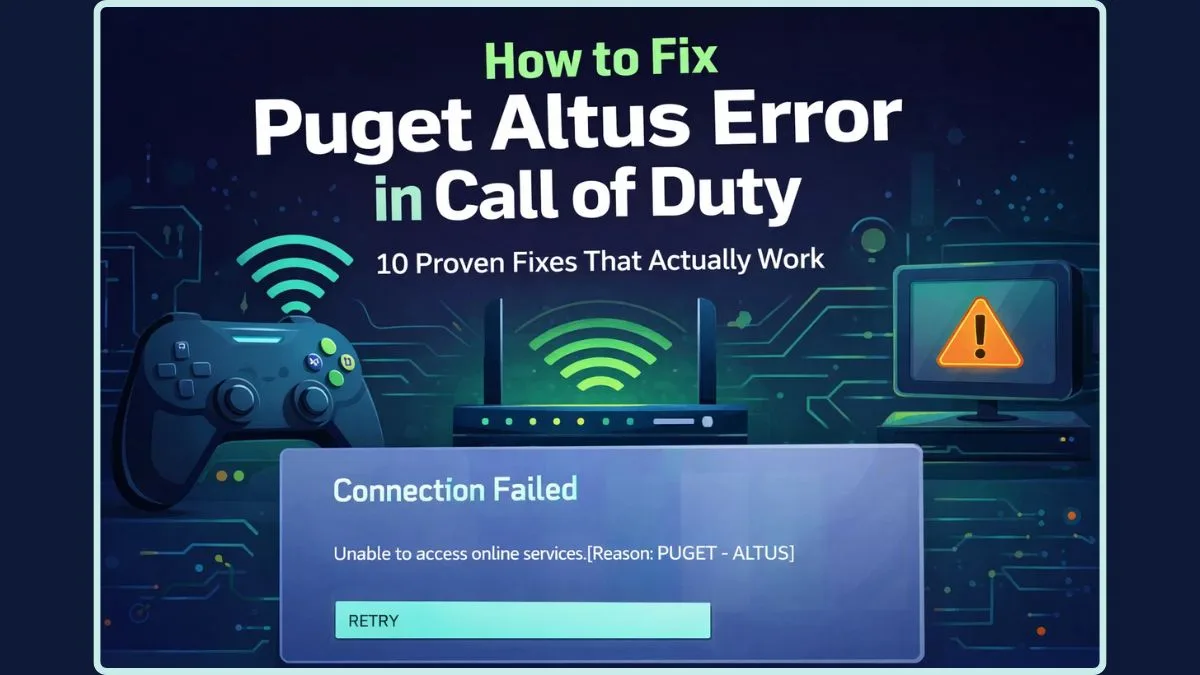
Fixing the Frustrating PUGET ALTUS Error in MW2 & Warzone 2: Connection Failed Solved
There’s nothing quite as frustrating for a gamer as firing up Modern Warfare 2 or Warzone 2, ready for some intense action, only to be met with a cryptic error message that prevents you from accessing the online battlefield. If you've encountered the dreaded "Connection Failed, Unable to access online services. [Reason: PUGET – ALTUS]" message, you're not alone. This Puget-Altus Error has been a thorn in the side of many players, bringing their gaming sessions to an abrupt halt. But don't despair; this comprehensive guide will walk you through the steps to diagnose and resolve this common connection issue, getting you back into the fight.
Understanding the PUGET ALTUS Error: What It Means and Why It Happens
At its core, the PUGET ALTUS error signifies a breakdown in communication between your game client and the Activision online services. It's essentially the game telling you it can't establish a stable or recognized connection to the servers required for online play. This isn't just a simple "no internet" message; it points to a more specific problem in the handshake process. The causes can generally be categorized into two main areas: server-side issues (problems with Activision's infrastructure) or client-side issues (problems with your game installation, internet, or local network). Understanding the potential origins is the first step toward a successful fix.
Common triggers for the Puget-Altus Error include:
- Server Downtime or Maintenance: Activision's servers might be offline for scheduled maintenance or experiencing unexpected outages due to high traffic or technical glitches.
- Outdated Game Client: Your game might not have the latest patch installed, leading to compatibility issues with the updated online services.
- Internet Connectivity Problems: While the error isn't always a general "no internet" message, an unstable, slow, or intermittent connection can certainly prevent proper communication with game servers.
- Local Network Interference: Firewall settings, VPNs, or router issues can sometimes block the necessary ports or connections.
For a deeper dive into the root causes and various solutions, you might find additional valuable insights in our article on What Causes PUGET ALTUS Error in MW2 & Warzone 2? Solutions Inside.
Initial Diagnostics: Checking the Obvious First
Before diving into more complex solutions, it's always wise to rule out the most common and often simplest causes. These initial checks can save you a lot of time and frustration.
1. Verify Activision Server Status
The number one suspect when dealing with connection errors in online games is often the game servers themselves. Activision's servers, while robust, are not immune to issues, scheduled maintenance, or unexpected downtime. Trying to connect during such periods will inevitably result in errors like PUGET – ALTUS.
- How to Check: Your first port of call should be official sources. Check the Activision Online Services Status Page or the dedicated status pages for Call of Duty: Modern Warfare II and Warzone 2 on reputable server status sites like DownDetector. You can also monitor official Call of Duty social media channels (e.g., Twitter) for real-time updates.
- What to Do: If the servers are indeed experiencing issues or undergoing maintenance, the only solution is patience. Wait for Activision to resolve the problem, then try connecting again. Attempting other fixes during server downtime will be futile.
2. Evaluate Your Internet Connection
Given the "Connection Failed" part of the error message, your internet connection is a prime suspect. Even if other applications seem to work, gaming requires a stable and reasonably fast connection, with low latency being particularly crucial for titles like MW2 and Warzone 2.
- Stability and Speed: Run a speed test (e.g., via Google's speed test or Speedtest.net) to ensure your download and upload speeds meet the recommended requirements for online gaming. More importantly, observe its stability. Frequent drops or inconsistent speeds can wreak havoc.
- Bandwidth Hogs: Close any applications that might be consuming significant bandwidth. This includes streaming services (Netflix, YouTube), large downloads, other online games, or file-sharing programs. Open Task Manager (
Ctrl+Shift+Escon Windows) and look for processes under the "Network" column that are using a lot of data. End task on non-essential applications. - Router & Modem Restart: A classic but often effective fix. Power cycle your router and modem by unplugging them for 30-60 seconds, then plugging them back in. This can clear temporary glitches and refresh your network connection.
- Wired Connection: If you're currently using Wi-Fi, try connecting your PC or console directly to your router with an Ethernet cable. A wired connection offers superior stability and speed compared to wireless, which can be prone to interference.
Client-Side Solutions: Ensuring Your Game is Ready
Once you've confirmed Activision's servers are operational and your internet connection is stable, the next step is to focus on your local game installation and system.
3. Update Your Game Client
Outdated game files are a frequent cause of connection errors, as newer server protocols or game features may not be compatible with an older client version. Ensuring your game is fully updated is a critical step.
- For Steam Users:
- Open the Steam client and navigate to your LIBRARY.
- Right-click on Modern Warfare 2 or Warzone 2.
- Select Properties.
- Go to the Updates tab.
- Ensure the "Always keep this game up-to-date" option is selected under the Automatic updates drop-down menu.
- If an update is pending, Steam should begin downloading it. You may need to restart Steam to prompt the installation.
- For Battle.net Users:
- Launch the Battle.net game client.
- Locate Call of Duty: Modern Warfare II | Warzone on your game list.
- Click on the cogwheel icon (Options) next to the "Play" button.
- Select Check for Updates.
- If an update is available, the client will download and install it automatically.
4. Verify Game File Integrity
Corrupted or missing game files can also lead to connection problems, as essential components for online services might be missing or broken. Verifying the integrity of your game files forces the launcher to check for and replace any damaged files.
- For Steam Users:
- Open Steam and go to your LIBRARY.
- Right-click on Modern Warfare 2 or Warzone 2.
- Select Properties.
- Go to the Local Files tab.
- Click on "Verify integrity of game files..." Steam will scan your game files and re-download any that are missing or corrupted.
- For Battle.net Users:
- Launch the Battle.net game client.
- Select Call of Duty: Modern Warfare II | Warzone.
- Click on the cogwheel icon (Options) next to the "Play" button.
- Select Scan and Repair. The client will then verify the game files and repair any issues it finds.
Advanced Troubleshooting for Persistent PUGET ALTUS Errors
If the above steps haven't resolved the Puget-Altus Error, it's time to dig a bit deeper into your system and network configuration. These solutions are slightly more technical but often prove effective.
5. Flush Your DNS Cache
Your computer stores a cache of DNS (Domain Name System) lookups, which helps it quickly find websites and servers. A corrupted or outdated DNS cache can sometimes prevent your system from correctly resolving game server addresses. Flushing it can resolve these issues.
- On Windows:
- Press
Windows Key + Rto open the Run dialog. - Type
cmdand pressCtrl+Shift+Enterto open Command Prompt as an administrator. - Type
ipconfig /flushdnsand press Enter. - You should see a message confirming the DNS resolver cache was successfully flushed.
- Press
6. Check Firewall and Antivirus Settings
Your operating system's firewall or third-party antivirus software might be overly aggressive, mistakenly blocking the game's connection to Activision's servers. Ensure that Modern Warfare 2 or Warzone 2 (and their respective launchers like Steam or Battle.net) are whitelisted or have exceptions in your firewall and antivirus settings.
- Windows Firewall: Go to
Start > Settings > Network & Internet > Windows Defender Firewall > Allow an app through firewall. Look for your game and its launcher and ensure both "Private" and "Public" boxes are checked. - Third-Party Software: Consult the documentation for your specific antivirus or security suite to add an exception for the game and its executable files.
7. Consider a VPN (or disabling one)
Sometimes, your ISP might be routing your connection inefficiently, or there might be regional issues impacting server connectivity. A Virtual Private Network (VPN) can sometimes bypass these routing issues by sending your traffic through a different server. Conversely, if you are using a VPN and encountering the error, try disabling it, as the VPN itself might be causing the connectivity problem. Test both scenarios to see if either helps.
8. Contact Support
If you've exhausted all troubleshooting steps and the PUGET ALTUS error persists, it might be time to reach out to Activision Support. Provide them with a detailed description of the issue, including all the troubleshooting steps you've already taken. They may have specific insights or tools to diagnose your unique situation.
For a complete rundown of all possible solutions, including advanced network configurations and hardware checks, our PUGET ALTUS Error: Complete Troubleshooting Guide for MW2 & Warzone 2 offers an even deeper dive.
Conclusion
The PUGET ALTUS error in MW2 and Warzone 2 is undeniably frustrating, but it is rarely insurmountable. By systematically working through these troubleshooting steps, from checking server status and your internet connection to ensuring your game is updated and files are intact, you significantly increase your chances of resolving the issue. Remember to be patient and methodical, trying one solution at a time before moving on. With a bit of persistence, you'll be back to dropping into Verdansk or Al Mazrah, enjoying the thrilling battles these games have to offer.