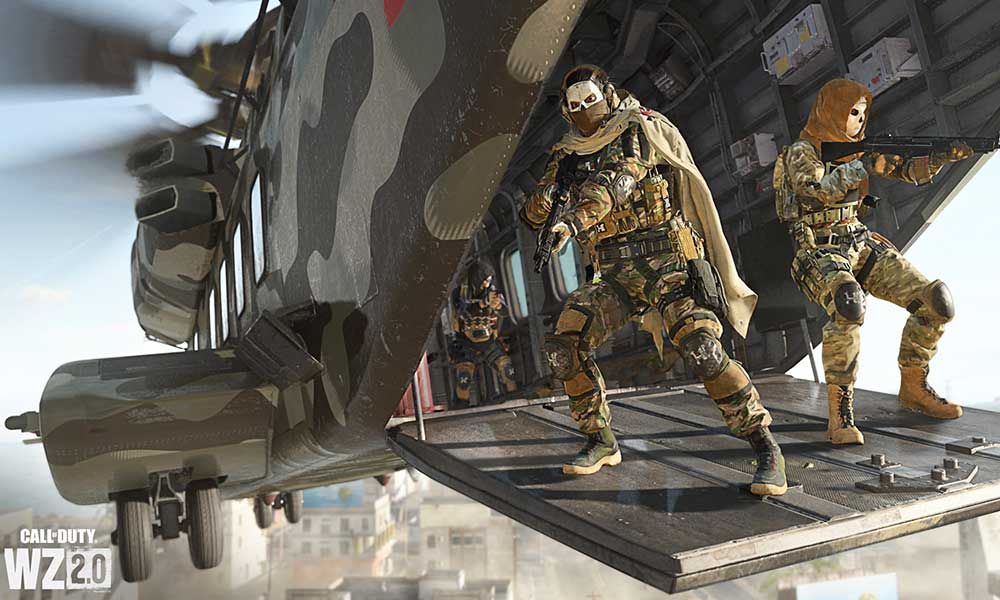
PUGET ALTUS Error: Complete Troubleshooting Guide for MW2 & Warzone 2
Few things are more frustrating for a dedicated gamer than hitting a roadblock right when you’re ready to drop into Al Mazrah or face off in a thrilling multiplayer match. If you’re a Modern Warfare 2 (MW2) or Warzone 2 player, you might have recently encountered the dreaded PUGET ALTUS Error, abruptly halting your gaming session with a stark “Connection Failed, Unable to access online services. [Reason: PUGET – ALTUS]” message. This error has become a common headache for many in the community, preventing access to the very core of the game: its online services.
The Puget-Altus error is, at its heart, a connection issue. It signals a breakdown in communication between your game client and the Activision online gaming servers. This could stem from a variety of sources, ranging from widespread server outages impacting everyone to localized problems with your internet connection or game installation. Understanding the root causes is the first step towards finding a lasting solution. For a deeper dive into what precisely triggers this issue, you might find our article What Causes PUGET ALTUS Error in MW2 & Warzone 2? Solutions Inside particularly insightful.
Decoding the Puget-Altus Error: Why You're Offline
When the PUGET ALTUS message pops up, it’s essentially the game telling you it can't establish or maintain a stable connection to the Activision servers required for online play. This isn't just a minor glitch; it can stop you dead in your tracks, unable to earn XP, complete challenges, unlock camos, or simply play with friends. The causes typically fall into two main categories:
- Server-Side Issues: Problems on Activision's end, such as scheduled maintenance, unexpected server outages, or high traffic loads overwhelming their infrastructure.
- Client-Side Issues: Problems originating from your own setup, including an unstable internet connection, outdated game files, corrupted game data, or software conflicts (like firewalls or VPNs).
Knowing this distinction helps narrow down your troubleshooting efforts. Let's delve into a comprehensive guide to resolve the Puget-Altus error and get you back into the action.
Comprehensive Troubleshooting Steps for the Puget-Altus Error
To effectively tackle the Puget-Altus Error, we'll walk through a series of logical steps, starting with the most common and easiest fixes, and progressing to more in-depth solutions. Remember to test your connection after each step.
1. Check Activision Server Status: Is it Them, or Is it You?
Before diving into complex client-side fixes, the very first thing you should do is ascertain the health of the Activision game servers. There's no point troubleshooting your setup if the problem lies with the game developer's infrastructure. The Puget-Altus error frequently appears during server maintenance or unexpected downtimes.
- Official Sources: Always check the official Activision Online Services Status page. A quick search for "Activision Server Status" will lead you there.
- Social Media: Follow official Call of Duty and Activision support accounts on platforms like X (formerly Twitter). They often provide real-time updates on server issues.
- Third-Party Detectors: Websites like Downdetector can also provide insights based on user reports, giving you a broader picture of potential outages.
If servers are down or under maintenance, patience is key. There's nothing you can do but wait for Activision to resolve the issues. If the servers are reported as operational, then the problem likely resides on your end, and you can proceed to the next steps. For more immediate solutions to connection failures, refer to our guide: Fix PUGET ALTUS Error in MW2 & Warzone 2: Connection Failed Solved.
2. Diagnose Your Internet Connection Stability and Speed
Given that the error message explicitly states “Connection Failed,” your internet connection is a prime suspect. Heavy-duty online games like MW2 and Warzone 2 demand a stable, sufficiently fast connection. A flaky Wi-Fi signal, high latency, or insufficient bandwidth can all trigger the Puget-Altus error.
- Run a Speed Test: Use an online tool (e.g., Speedtest.net) to check your download speed, upload speed, and ping (latency). Ensure your speeds meet or exceed the minimum requirements for online gaming (typically 3-5 Mbps download, 1 Mbps upload, and ping below 50ms for optimal experience).
- Wired Connection Preferred: If you're using Wi-Fi, consider connecting your PC or console directly to your router with an Ethernet cable. This eliminates potential interference and provides a more stable connection.
- Power Cycle Your Network Gear: Unplug your modem and router from power, wait 30-60 seconds, then plug them back in. Allow a few minutes for them to fully reboot and re-establish a connection. This often resolves minor network glitches.
- Close Bandwidth-Hogging Applications: Other applications running on your PC (streaming services, large downloads, other online games) can consume significant bandwidth. Open Task Manager (Ctrl+Shift+Esc), navigate to the "Processes" or "Details" tab, and close any non-essential applications that might be eating up your network resources.
- Check for ISP Issues: If all else fails, and other devices on your network are also struggling, contact your Internet Service Provider (ISP) to inquire about local outages or issues with your service.
3. Ensure Your Game is Fully Updated
Outdated game files are a frequent culprit behind connectivity errors, including the Puget-Altus error. Developers often release patches that include server communication improvements, bug fixes, and compatibility updates. Playing on an older version can prevent you from connecting to current online services.
Updating on Steam:
- Launch the Steam client.
- Navigate to your LIBRARY.
- Right-click on Call of Duty: Modern Warfare II / Warzone 2.
- Select Properties.
- Go to the Updates tab.
- Under the "Automatic updates" dropdown, ensure "Always keep this game up-to-date" is selected.
- If an update is pending, Steam should start downloading it immediately. Relaunch Steam and the game after the update completes.
Updating on Battle.net:
- Open the Battle.net desktop client.
- Select Call of Duty: MW II / Warzone 2 from your game list.
- Look for a cogwheel icon (⚙️) next to the "Play" button. Click it.
- Select "Check for Updates" from the menu.
- If an update is available, Battle.net will download and install it. Restart the game client once finished.
For console players (PlayStation, Xbox), typically your console is set to automatically update games. You can manually check for updates by highlighting the game on your dashboard, pressing the "Options" or "Menu" button, and selecting "Check for Update."
4. Advanced Client-Side Troubleshooting
If the above steps haven't resolved the Puget-Altus error, it's time to dig a little deeper into potential client-side conflicts.
Clear Game Cache & Network Settings
Corrupted cache data can sometimes interfere with online connectivity. Both game clients and consoles store temporary data that, if corrupted, can cause issues.
- PC (Battle.net): Exit the Battle.net client. Press
Ctrl+Shift+Escto open Task Manager and ensure all Battle.net processes are ended. Navigate toC:\ProgramData\and delete the "Battle.net" and "Blizzard Entertainment" folders (these will be recreated on client restart). - PC (Steam): Steam generally manages its own game cache effectively. Verifying game files (right-click game > Properties > Installed Files > Verify integrity of game files) is the closest equivalent and highly recommended.
- Consoles: Power cycle your console by completely shutting it down (not rest mode), unplugging it for 1-2 minutes, then restarting. This often clears system caches. You can also try clearing MAC addresses on Xbox (Settings > Network Settings > Advanced Settings > Alternate MAC address > Clear) or rebuilding database on PS (Safe Mode > Rebuild Database).
Flush DNS and Reset Network Configuration
Your Domain Name System (DNS) cache or other network settings might be outdated or corrupted, leading to incorrect server lookups.
- Open Command Prompt as an administrator (search "cmd", right-click, "Run as administrator").
- Type the following commands, pressing Enter after each:
ipconfig /flushdnsipconfig /releaseipconfig /renewnetsh int ip resetnetsh winsock reset
- Restart your computer after running these commands.
Check Firewall and Antivirus Settings
Your operating system's firewall or third-party antivirus software might be mistakenly blocking the game's connection to Activision's servers.
- Windows Firewall: Ensure Modern Warfare 2 and Warzone 2 (and their respective launchers, Steam/Battle.net) are allowed through your firewall. You can temporarily disable your firewall to test if it's the culprit (use caution and re-enable promptly).
- Antivirus/Security Software: Check your antivirus software's settings for any game mode, network protection, or firewall features that might be interfering. You can try temporarily disabling it to see if the error persists.
Disable VPN or Proxy Services
If you're using a Virtual Private Network (VPN) or a proxy server, it might be routing your connection through a server that's experiencing issues or is blocked by Activision. Try disabling your VPN/proxy and connecting directly.
Reinstall the Game (Last Resort)
If none of the above solutions work, there's a possibility that your game installation itself is corrupted beyond simple repair. A complete reinstall of Modern Warfare 2 or Warzone 2 might be necessary. This is a time-consuming process due to the large file sizes, so consider it a last resort.
Preventing Future Puget-Altus Errors
While some issues are out of your control (like server outages), many can be mitigated by good habits:
- Stay Updated: Always ensure your game, graphics drivers, and operating system are up-to-date.
- Maintain a Stable Network: Prioritize wired connections, especially for competitive gaming. Regularly power cycle your router and modem.
- Monitor Server Status: Before you launch the game, a quick check of server status can save you time and frustration.
- Avoid Overloading Your Network: If you're gaming, try to minimize other heavy network activities on your connection.
Conclusion
The PUGET ALTUS error can be a significant roadblock for MW2 and Warzone 2 players, but it’s rarely an insurmountable one. By systematically troubleshooting the potential causes—from checking server status and internet stability to ensuring your game is updated and resolving client-side conflicts—you significantly increase your chances of resolving the issue. Remember, patience and a methodical approach are your best tools when faced with connectivity problems. We hope this comprehensive guide helps you overcome this frustrating error and get back to enjoying the intense battles and action that Modern Warfare 2 and Warzone 2 have to offer.